Showing posts with label Android. Show all posts

Monday, January 9, 2017

View 3D movies on VR One with iPhone/Android

If you have a VR headset, then you can watch a 3D movie all from the comfort of your home. Zeiss VR One is a nice choice, its screens are so sophisticated! Here's how you can watch a 3D movie with Zeiss VR One on iPhone or Android smartphone.

Part 1: How to view SBS 3D movies on VR One via iPhone/Android?

The Zeiss VR One Cinema app enables you to enjoy your 3D movies in an immersive environment with the lights off. Download it on the Google Play / Apple App Store and run it. 

Note that the VR One Cinema app can play SBS 3D MP4/MOV and 2D MP4/MOV/M4V file formats. 

For iOS users: 
1. Connect your iPhone 6 to iTunes 
2. Select your iPhone and go to "Apps" / "File Sharing" / "VR ONE Cinema" 
3. Drag and drop any .mp4 / .mov file into the list of documents. 
*Download detailed Instructions for iOS 

For Android smartphone users: 
1. Connect your Android phone via USB cable and open Android file transfer 
2. Create a folder "VRCinema" on your phone at root level 
3. Drag and drop any .mp4/.mov file into this folder. 

Important Tips for iPhone and Android 
1. For 3D side-by-side (SBS) movies, please make sure that the filename contains "SBS", and the app will automatically show the correct content for each 
eye. 
2. Movies in 720p resolution are best for watching in the VR ONE Cinema. 
3. DRM-protected movies (e.g. purchased movies from Google Play, Amazon, iTunes store, etc.) are not supported. (You can use a DRM Removal tool to remove DRM protection and convert them to 3D SBS MP4/MOV format for watching on VR One.) 

Adding SBS 3D movies to VR One Cinema app is very easy! Enjoying! 

-------- Read more: Watch 3D Movies on Gear VR

Part 2: How to view incompatible 2D/3D movies on VR One via iPhone/Android?

While if you want to transfer your other 2D or 3D movie sources like 3D YouTube videos downloaded, 3D MKV, 3D M2TS, 3D AVI, 3D WMV, 3D FLV, even various 2D movies to Zeiss VR One, then you'd better convert them to Zeiss VR One accessable 3D SBS MP4/MOV files first, since they're not a compatible format for Zeiss VR One. Although there are plenty of tools for converting 2D/3D movies and videos, take both converting speed and quality into consideration, Hivimoore 3D Video Converter Ultimate is definitely a great option for you! 

With it, you can convertconvert all 2D/3D and 2K/4K videos in AVI, MKV, WMV, MPG, VOB, TiVo, MOV, M2TS, TS, FLV, F4V, SWF, etc. to Zeiss VR One compatible SBS 3D MP4/MOV effortlessly. What's more, with the built-in editor, you can trim, crop, adjust special effect to your 3D movies, so that you get the very part and effects at your will. If you are a Mac user, you can turn to Hivimoore Video Converter Ulrimate for Mac (macOS Sierra, El Capitan, Yosemite included), which has the same function as the Windows version. 

View 3D movies on VR One View 3D movies on VR One 

View 3D movies on VR One View 3D movies on VR One

Steps on converting 2D/3D/4K movies to VR One 3D SBS MP4 for iPhone/Android

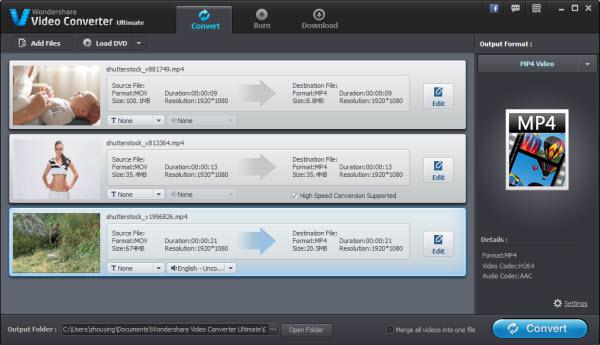
Step 1: Start up the program on your computer, click the "Add Files" icon to load your movie files to the program. 
View 3D movies on VR One 

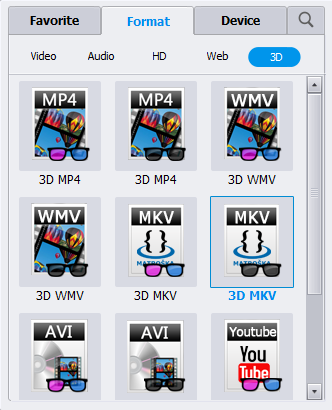
Step 2. Select SBS 3D MP4 for Zeiss VR One 

Click "Output Format" bar and find "Format" -> "3D", there are a lot of format options for you. "Side-by-Side 3D MP4" is recommended for Zeiss VR One. 
View 3D movies on VR One 

Step 3. Advanced Video/Audio settings 

Click "Settings" button to do corresponding settings regarding to video, audio. Note that Zeiss VR One compatible audio has to be encoded in AAC or MP3. AC3 audio and DTS Dolby don't seem to work. Plus, in this Profile Settings window, you can also select 3D Anaglyph and 3D Depth. 

Step 4. Start converting 

After you have done all the settings, return to the main interface to hit "Convert" button to start 2D/3D movies to Zeiss VR One converting process. When the conversion is finished, click "Open Folder" button to get the output 3D movies for adding to VR One via iPhone or Android smartphone. 

iPhone/iPad/Android/Samsung Tips and Tricks:
Download and Transfer Amazon Instant video to Android Tablet or Smartphone 
Doesn't play MKV movies on your Android tablet or smartphone? 
How to play iTunes movies on Android devices? 
How to Move and Copy DVD to Android Phone and Tablet for watching on the go? 
Add lossless FLAC files to iTunes and iPhone/iPod/iPad 
How to Copy DVD to iTunes Library for syncing to iPad, iPhone, Apple TV? 
Sync Music, Videos from PC/Mac to iPhone 6 (Plus) without iTunes 
How to Copy DVD movies to your iPhone 6 plus for watching unlimitedly? 
How to Download and Add DVD collection to my iPad Air (2) for watching? 
How to Backup and Restore Locked iPhone 7 (Plus) Data? 
Recover WhatsApp Messages from iPhone 7/plus, SE, iPhone 6s/6 plus, iPhone 5s/5c/5/4s/4/3gp 
3 Ways to Recover Deleted or Lost data from iPhone 6s Plus/iPhone 6s 
Recover Deleted Contacts/Text message on iPhone 7/Plus, 6S/6 (Plus)/5S/5C/5/4S/4 
Three ways to Recover deleted SMS text messages from iPhone 6/7 (Plus) 
Top 5 Free Ways to Backup WhatsApp Messages on iPhone: iPhone 7/plus, SE, 6S/6 Plus, 5S/5C/5/4S/4 
How to Play Movies on Galaxy S7/S7 Edge(DVD, iTunes, 4K and HD Video)? 
Download and Watch Amazon Instant Videos(wmv) on Samsung Galaxy Tab 4 Nook 
How to Play DVDs on Galaxy Note 7/5 with best quality? 
Galaxy S6/S6 Edge can play MKV, AVI, M4V, FLV, VOB, WMV, Xvid Videos? 
How to Transfer iTunes Movies to Galaxy Note 5 For Watching? 
Can I put iTunes video to Galaxy Tab S/S2 for playback? 

Source: http://www.starstarsoft.com/view-3d-movies-on-vr-one/

Sunday, October 23, 2016

Put Videos to Android Tablet/Phone for Watching

Those favorite videos, TV shows you stored in Computer and downloaded online can not be read or played on your Android phones and tablets, while you think you made them in the right format for the gadgets. In this article I'll show you how you can transfer all kinds of videos to Android tablet and smartphones without any errors using a simple tool - Wondershare Video Converter Ultimate. - Review 

The best Android Video Converter Ultimate offers complete support for making videos compatible with Android Tablets/Smartphones. It allows you to set resolution, bitrate and frame rate at your will. The Android Video Converter Ultimate has a clear and user-friendly interface without ads or plug-in. More fantastically, you can edit your videos via the program as your like and burn home DVD or ISO files with ease. 

Apart from converting videos to Android friendly formats, it can also download online videos from Youtube, Vimeo, Facebook, Vudu, etc., convert DRM-ed audio files to plain formats. 

Please follow the steps below for making your favorite videos compatible with your Android Tablet or Smartphone. 

-----Hot Search: iTunes to Android | DVD to Android | Amazon Instant Video to Android 

Preparations: 
Before we start, download and install Android Video Converter Ultimate on your computer. Here two versions are provided: Android Video Converter for Windows and for Mac. Get the right one on your PC and follow the steps now. (Here we take Windows version for an example) 

Supported OS: Windows 10/8.1/8/7/Vista/XP/2003/2000/NT4 and Mac OS X 10.12, 10.11, 10.10, 10.9, 10.8, 10.7, 10.6 


How to Convert Videos to Android Tablet/Smartphone Compatible Formats? 

Step 1. Add Video Files to the Android Video Converter 

The first step is to launch the Android Video Converter Ultimate, you can see the main interface below. The next step is to load the video file in the interface. Wondershare Video Converter Ultimate provides its users with the facility to either load the video file from computer system or from DVD. To load the video file from computer, you can either use the dragging method or choose the "Add Files" option. However if you want to load your video file from DVD, you should use the "Load DVD" button. 


Step 2. Specify the output format to any format under the "Device" option 

To make a video file compatible with your android phone, you need to choose a relevant file format. The best Android Video Converter Ultimate provides a completely different category of output formats for devices. You can find these formats under the "Device" category in the "Output Format" tab. Now choose "Others" from the sub tab where you can easily find "Android OS" option. 


Step 3. Specify the output folder 

Once you have set the output format for android OS, the next step is to change the output folder of resultant file. You can change the default folder set by Android Video Converter Ultimate and choose any other destination folder according to your requirement. 

Step 4. Start the Videos to Android conversion process 

After making all the settings, the final step is to start the conversion process. You can start the video to Android tablet/smartphone conversion process by clicking on the "Convert" button at the bottom of the screen. The resultant video file will be compatible with your Android Tablet or Smartphone. 

Once the conversion process has been completed, you can find the resultant file in the destination output folder. Connect your Android Tablet or Smartphone with your computer and copy the resultant file from the output folder to your Android Tablet or Smartphone. You can perform this transfer by either connecting your Android Tablet or Smartphone to your computer via Wi-Fi or through USB. 

Summary: Wondershare Video Converter Ultimate - Your Complete Android Video Video Toolbox 
* Converts files 30x faster than other converters. 
* Convert to Over 150 Formats. Including 4K/3D. 
* Edit, Enhance & Personalize Your Videos File. 
* Download videos from 1000+ video sharing sites. 
* Easily record streaming online videos 
* Burn and customize your DVD with free DVD menu templates. 
* Streaming Your Media to TV. 

Editor's Recommendation: 


Tuesday, March 4, 2014

LG G Flex Android 4.4 update to add 4K video support

We have a very promising indicator for owners of the LG G Flex smartphone today, as it appears that the Android 4.4 update will add 4K video support. The phone famed for its curvaceous and flexible design arrived last November and launched on Android 4.2.2 Jelly Bean, so this will be welcome news.

 
Although the addition of 4K video hasn’t been confirmed by LG, a reliable source according to Phone Arena, has tipped this information. This is reinforced by a User Agent profile that indicates the G Flex as offering 2160p video.

The same source also says that 120fps slow motion video will NOT be supported with the Android 4.4 update. An XDA member has already come up with a mod enabling an LG G2 with stock Android 4.4 to shoot 4K video as well as 120fps slow mo.

However, owners of the LG G Flex will only have to update it to Android KitKat to receive 4K video capabilities. It’s not yet clear exactly when the Android 4.4 update will roll out to the phone, but we’ll be following developments on this and will keep readers in the loop.

In the meantime it would be interesting to hear what owners of the LG G Flex think about 4K video on the way with the Android KitKat update? Do send us your comments to let us know.

Monday, March 3, 2014

Qualcomm Snapdragon 805 4K tablet hands-on review

We check out the performance of Qualcomm's new ARM-based super chip for tablets

Mobile World Congress 2014 saw a wave of new processors appear on the scene. This kicked of with Intel, when it launched a major offensive into the smartphone market, unveiling its dual-core Merrifield and quad-core Moorefield Atom processors. Not wanting to be outdone by the PC heavyweight, Qualcomm answered back, unveiling its latest top-end Snapdragon 805 64-bit processor.

Performance

On paper the Snapdragon 805 is pretty impressive. Built up of four Krait 450 cores with a maximum clock speed of 2.7GHz, the chip also integrates an Adreno 420 GPU and 128-bit memory interface. But a chip by itself is never the whole story, and it's all about how it works with the other parts and software in the device.


We got to test the Snapdragon running inside several demo Android tablets at Qualcomm's MWC stand, and we were very impressed by how well they ran. Trying out the first tablet with a variety of pre-installed applications, the device was lighting fast. We were particularly impressed with how well it dealt with heavier, more demanding tasks such as 1080p 3D gaming.
We're guessing this is due to the chip's upgraded Adreno 420 GPU, which is listed as offering 40 percent better performance than the older 320. It's also likely a consequence of the fact that the Adreno 420 GPU supports new hardware tessellation and geometry shaders for 4K rendering.

Hardware tessellation is a feature traditionally only seen in discrete GPUs for PCs and it has only recently been incorporated into DirectX and next-generation games consoles such as Sony's PS4 and Microsoft's Xbox One. For us the feature's inclusion on the Snapdragon 805 is sign that Qualcomm is working to further close the gap between PCs and tablets.

4K ultra HD resolution display

We noticed the biggest Snapdragon perk on a second tablet, which had a 10.1in 4K ultra HD 3840x2160 resolution display. This display quality is only possible on the tablet thanks to the advanced GPU and CPU combination in the Snapdragon 805, and we have to concede that the 4K display is a serious technical achievement.

Viewing a variety of images on the device, we found it one of the crispest and sharpest displays we've seen on a tablet. From, what we've seen of the test device so far, the display easily beat the iPad Air's performance. Holding the tablet as close to our face as we could, we still couldn't discern individual pixels on the screen.


As an added bonus the Snapdragon 805 also offers 4K video playback, featuring support for the hardware 4K HEVC (H.265) decode for mobile. Sadly, we didn't get a chance to test this during our hands on.

Chances

There's currently no word about when the first Snapdragon 805 tablets will be go on sale, but from what we've seen of the Qualcomm demo devices, we're pretty excited. The demo tablets we tried seemed lightning fast and, while we didn't get a chance to benchmark them, they did seem to offer substantially improved performance on Qualcomm's previous Snapdragon 800 processor.

That said, the real question isn't how the Snapdragon 805 compares with the 800, it is how it will match up to the performance of Intel's Moorefield. We're yet to get a chance to test this, but with Dell, Lenovo and Asus confirmed to be working on devices using the upgraded Atom chips, hopefully we won't have to wait long to do so.

Wednesday, February 26, 2014

Qualcomm demos 4K Android gaming tablet at MWC 2014

Qualcomm demos 4K Android gaming tablet
The first Android tablet equipped with Qualcomm's new Snapdragon 805 processor was on-hand at Mobile World Congress in Barcelona.

The Verge got to try it out, and the tech site said that "it's good, it's very good." They played existing games including Asphalt 8: Airborne and Injustice: Gods Among Us and seemed impressed. Since the games' textures and graphics were designed for lower resolutions, "they don't look as awesome as they could, but the sheer fact that they can be run at 4K with a perfectly playable frame rate is impressive," the site said.

The Qualcomm tablet on display at the tech show appears to be merely for demonstration purposes, though. Qualcomm announced the new Snapdragon chip last November, but it's not due to show up in any retail devices this summer. When it does, though, 4K resolution tablet gaming may well become the new standard.

There's debate as to whether jamming so many pixels onto the relatively small screens of tablets and smartphones will actually provide much benefit to the human eye, but that seems to be the direction the industry is headed regardless.

More Related: